 Episodream
AI series studio
Your character is ready. The scene is yours.
From an idea to an episode with sound. Anime or animation, all on your phone.
Upload your character images and write the scene. Episodream creates the picture, the motion and the sound together; then continue the episode, upscale it or edit it.
For Android · Google Play

- creation modes
- 6
- Video, continue, image, upscale, voice, smooth motion
- references per video
- 15
- 9 images · 3 videos · 3 audio
- upscaling
- 4K
- ≈2160p on vertical video
- voice languages
- 11
- With your own voice sample, if you like
01Genres and styles
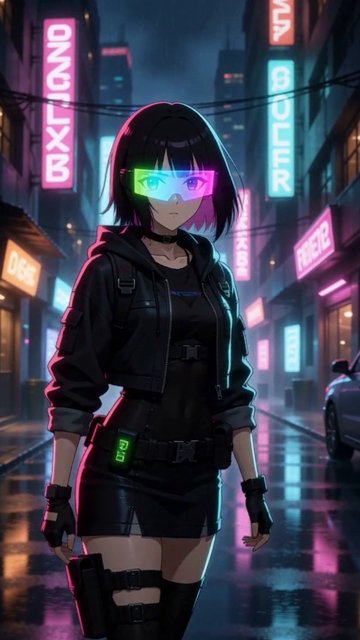
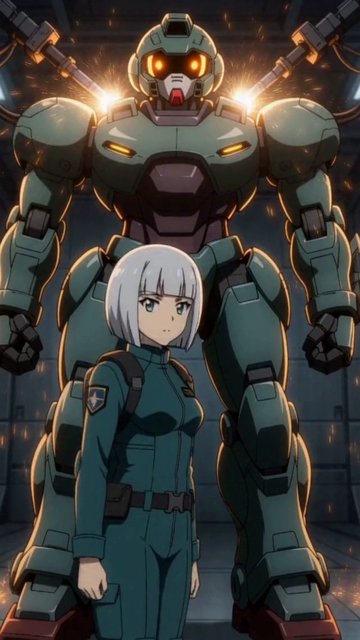
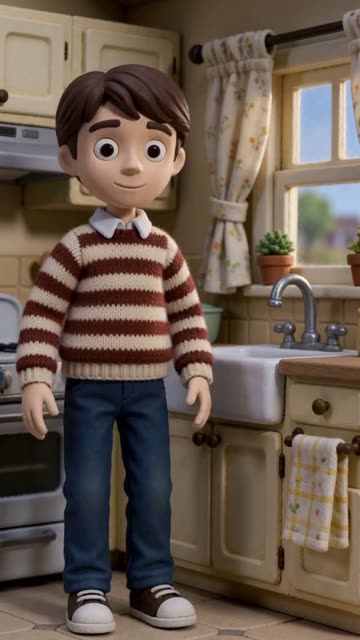
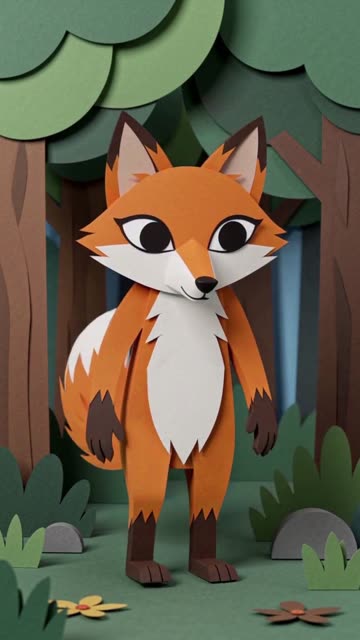
26 styles. Your pick.
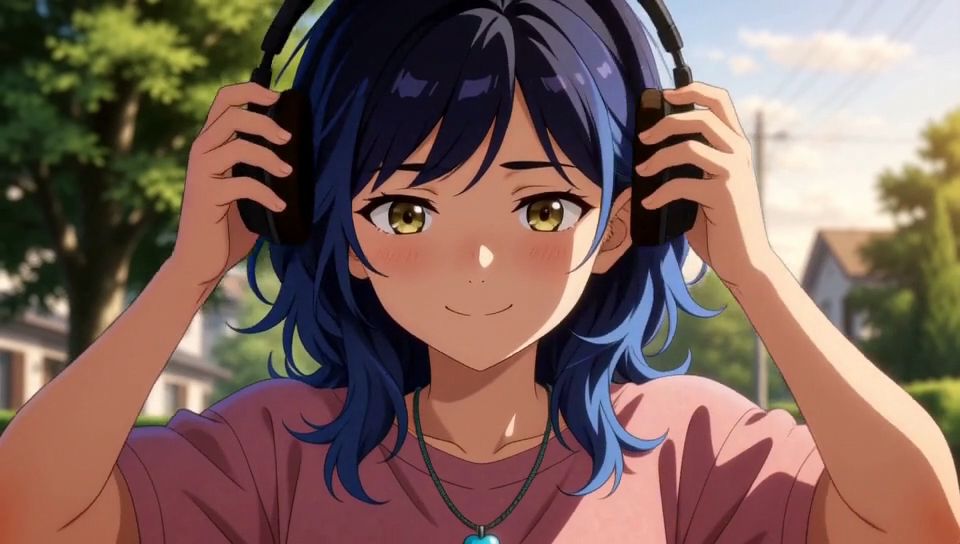
Anime or animation: pick a genre and a style, and the scene takes its look without you describing it.
Anime
Eras 06

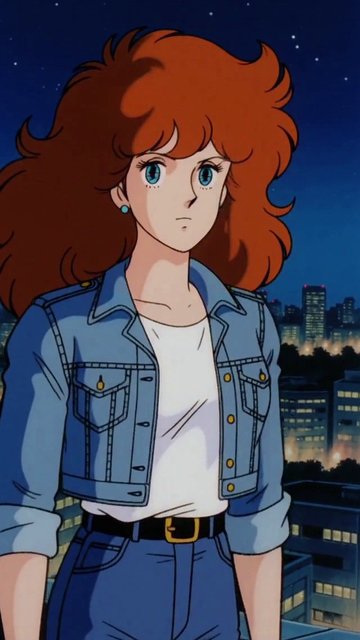




Looks 12






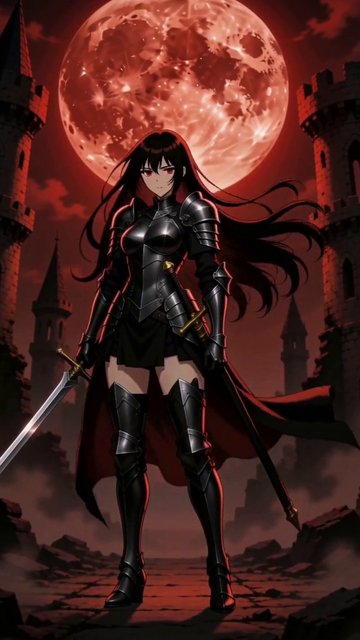



Animation
Looks 08





02Modes
6 modes. One studio.
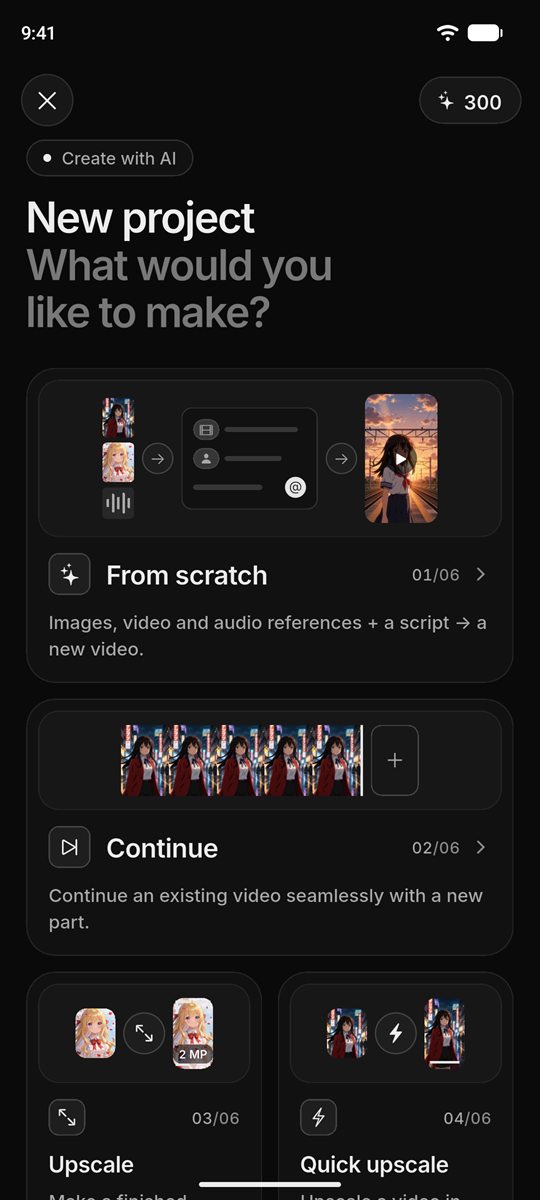
Create from scratch, draw a single frame, pick up where you left off, sharpen, upscale fast, voice and smooth. All in the same app, in the same library.
-
From scratch
01/06A brand-new video from your character images, short clips and sounds, following the script you write, with picture and sound created together.
- 9 images · 3 videos · 3 audio
- 8 aspect ratios
- 1 or 3 candidates
-
Continue
02/06Add a new part to the end of an existing video. The transition frames blend softly with the source, so the story keeps going without a cut.
- Smooth transition
- Ratio from the source
-
Image from scratch
03/06Describe your character, with up to 4 reference images (a rough sketch or a grey 3D figure works too): one character sheet with front, side and back views and facial expressions. Creature, vehicle and place sheets too.
- Up to 4 references
- Front · side · back + expressions
-
Upscale
04/06Redraw a video you like at 1,536p with the same scene and characters, then take it to true 4K if you want.
- Same scene, sharper
- Optional true 4K
- 1,536p → 3,840×2,160
-
Create voice
05/06Write the line and describe the tone. Add a short voice sample if you like, and AI speaks in that timbre.
- 11 languages
- Clone from a sample
-
Smooth motion
06/06Add in-between frames to bring a video up to 120 FPS. The scene isn’t re-created; only the motion gets smoother.
- Sound stays as is
- Videos up to 30 s
03How it works
From idea to episode. In four steps.
You bring the character and the story. Light, motion, editing and sound come from AI.
-
01
Add your references
Character images, short clips or audio files. You choose how closely each one is followed.
-
02
Write the scene
A short summary and a scene description are enough. Tag characters and shots with @, and describe the ambience and music.
-
03
Pick your settings
Length, aspect ratio and quality. The price is on the button before you send; make 3 candidates of the same scene if you like.
-
04
Watch and keep going
Your episode lands in your library when it’s ready. Continue it, upscale it, smooth it, or cut and join it in the editor.
04Fine control
Every frame, under your control.
A quick try or a carefully built scene: settings open up as deep as you want to go.
-
Reference fidelity
Keep it exactly, keep it mostly, transfer the style or just take inspiration. Separately for each reference.
-
First and last frame
Decide which image the video opens on and which one it ends on.
-
Lips that follow the voice
Bring your own recording; the video is made with that sound and the character’s lips match it.
-
3 candidates
Get 3 different takes of the same scene. Save the one you like to your library for free.
-
8 aspect ratios
Every shape from 9:16 to 21:9; 9:16 by default.
-
Advanced settings
LoRA, sampler, step count and seed. Catch a result you like again with the same seed.
05In the app
A studio in your pocket. Editing is free.
Everything you make lives in one library. Cut and join clips, add sound and export from your phone. The editor runs on your device and uses no credits.
-
Video editor
Split, trim, speed up or slow down (0.25–4×), three audio layers, 1080p export.
-
Library
Nested folders, favorites, search and sorting. Your library lives in your account and stays with you when you change phones.
-
Player
Double-tap to skip 5 s forward or back, or drag the scrubber to any moment.
-
Save to device
Save your videos and voices to your gallery in one tap.
06Credits
Pay for what you make. Nothing more.
Each creation is priced by its length, quality and number of candidates. You see the price on screen before you send.
- The price is on the button before you send.
- If a creation can’t be completed, every credit is refunded automatically.
- Cancel a creation that’s still in the queue and your credits come right back.
- Editing, saving candidates and your library are always free.
- Your credits never expire.
Credit prices
credits / second- From scratch · Continue
- Fast2 Balanced3 High4
- Image from scratch per image · by size
- 1×3 1.5×3–4 2×4–6
- Upscale min. 2 credits
- Turbo4 Full12 4K1
- Create voice min. 4 credits
- Fast1 Balanced2 Studio3
- Smooth motion min. 4 credits
- 1
- Video editor
- Free
Balanced video, 8 seconds: 24 credits. With 3 candidates: 72 credits.
Credit packs are in the app’s Store, through Google Play.
Our promises
-
No passwords
Sign in with a 6-digit code sent to your email. Nothing to remember.
-
A fair queue
The queue takes turns between users, so every creation gets its fair turn.
-
Your data is yours
Delete your account and all your files from the app in one step.
-
6 languages
English · 中文 · हिन्दी · Español · العربية · Türkçe
07FAQ
Good questions. Short answers.
Can’t find your answer here? Write to us:
[email protected]Is Episodream free?
Downloading the app, creating an account, editing and using your library are free. AI creations use credits, and the price is shown on screen before each one.
How long can a video be?
The model gives the most consistent results up to 15 seconds. The limit for a single creation depends on quality and references; for longer stories, extend the episode piece by piece with “Continue”.
How long does a creation take?
A video of 8 seconds is usually ready in a few minutes, depending on quality. If the queue is busy you may wait a little; you can follow the progress live in the app.
What if a creation fails?
The system tries once more if needed. If it still can’t be completed, all the credits you spent are refunded automatically.
Can I use my own voice?
Yes. In “Create voice” you can add a short voice sample; AI uses only its timbre, not the recording itself. To add a sample, you confirm that you have the right to use that voice.
Which phones does it work on?
For now, phones with Android 7.0 or later. You can download the app from Google Play.
How do I delete my account?
In the app, go to Profile → Delete account. Your account, credits, library and all files are deleted. If you can’t access the app: Delete Account
The next episode is yours
Go on. Make your first episode today.
Get the app, upload your references, write your first scene.
 For Android · Google Play